> ## Documentation Index
> Fetch the complete documentation index at: https://docs.fly.io/llms.txt
> Use this file to discover all available pages before exploring further.
# Appkata: Gogs - standalone Git Server
**Warning: This document is old! It is likely wrong in some important way.**
# appkata-gogs
Deploying Gogs using Fly.
[Read this guide on Fly.](/app-guides/git-gogs-server)
## Rationale
**Appkata**: The application fighting style - and a series of application-centric examples for Fly.io.
The fundamental tool of modern development is a version control system, most often Git. Let's get some Git on Fly. If we just skip past creating a bare Git server because that's no fun, we find Gogs. Gogs bills itself as "a painless self-hosted Git service" and comes ready-packed as an easier to install, and complete Git service, including a web front end for issues and pull requests.
Let's get Gogs going on Fly. Our starting point is [gogs/docker](https://github.com/gogs/gogs/tree/main/docker) which has all the configuration and files related to the official Gogs docker image. It's that image we are going to build with. We are going to use that image to deploy on Fly.
## Databases
Gogs needs the support of a database, typically MySQL or Postgres, which would involve deploying a whole separate process. But it also supports using SQLite3 as a local database. The database will need persistent disk space. We'll use the Fly Volumes feature to give our application that disk space.
## Ports
Gogs runs a web service on port 3000 and an SSH service on port 22. We'll get Fly to redirect the web service to port's 80 and 443, and put SSH on port 10022. First though, some initialization
```bash cmd theme={null}
> fly init appkata-gogs --image gogs/gogs --org personal --port 3000
```
```out out theme={null}
Selected App Name: appkata-gogs
New app created
Name = appkata-gogs
Organization = personal
Version = 0
Status =
Hostname =
App will initially deploy to lhr (London, United Kingdom) region
```
This generates a `fly.toml` file with the basic components for configuring our gogs:
```toml theme={null}
# fly.toml file generated for appkata-gogs on 2020-11-02T16:00:06Z
app = "appkata-gogs"
[build]
image = "gogs/gogs"
[[services]]
internal_port = 3000
protocol = "tcp"
[services.concurrency]
hard_limit = 25
soft_limit = 20
[[services.ports]]
handlers = ["http"]
port = "80"
[[services.ports]]
handlers = ["tls", "http"]
port = "443"
[[services.tcp_checks]]
interval = 10000
timeout = 2000
```
This is the barebones of a configuration. It only redirects port 3000. The next step is to add a service to handle SSH communications from Gogs. Append this to `fly.toml`:
```toml theme={null}
[[services]]
internal_port = 22
protocol = "tcp"
[[services.ports]]
handlers = []
port = 10022
[[services.tcp_checks]]
interval = 10000
timeout = 2000
```
This passes traffic on 10022 through to Gogs on port 22. There's no handler needed for this, but it is checked as part of the Fly health checks.
## Persistent Disks
With the other port set up, we then move to the persistent data storage. Make a Fly volume in the region where the app will be running. When we "inited" the app, it told us it would initially be deployed to London, LHR region. Let's create a default (10GB) sized volume called `data` there:
```bash cmd theme={null}
fly volumes create data --region lhr
```
```out out theme={null}
ID: JD20D7DMOVAequGbLPR
Name: data
Region: lhr
Size GB: 10
Created at: 04 Nov 20 09:45 UTC
```
The Gogs image expects to see its data volume mounted on /data. To do that, it's back to `fly.toml` to add a `mounts` section for our new volume:
```toml theme={null}
[[mounts]]
source="data"
destination="/data"
```
## Deploying
We can now deploy Gogs using the command `fly deploy.`
```bash cmd theme={null}
❯ fly deploy
```
```out out theme={null}
Deploying appkata-gogs
==> Validating App Configuration
--> Validating App Configuration done
Services
TCP 80/443 ⇢ 3000
TCP 10022 ⇢ 22
Deploying image: gogs/gogs
--> docker.io/gogs/gogs
==> Optimizing Image
--> Done Optimizing Image
==> Creating Release
Release v0 created
Deploying to : appkata-gogs.fly.dev
Monitoring Deployment
You can detach the terminal anytime without stopping the deployment
1 desired, 1 placed, 1 healthy, 0 unhealthy [health checks: 2 total, 2 passing]
--> v0 deployed successfully
```
Note the two health-checks which match up with the two health-checks in `fly.toml`.
Gogs is now up and running and you can use `fly open` to go straight to the site where you'll be greeted by the first time run screen. Now it's time to configure our Gogs deployment.
## Custom Domains
If you have a custom domain you want to use for your Gogs server, now is the time to set it up. You'll need to edit some DNS records so kick off the process with `fly certs add yourdomain` and it'll give you instructions as you go.
## Configuring Gogs
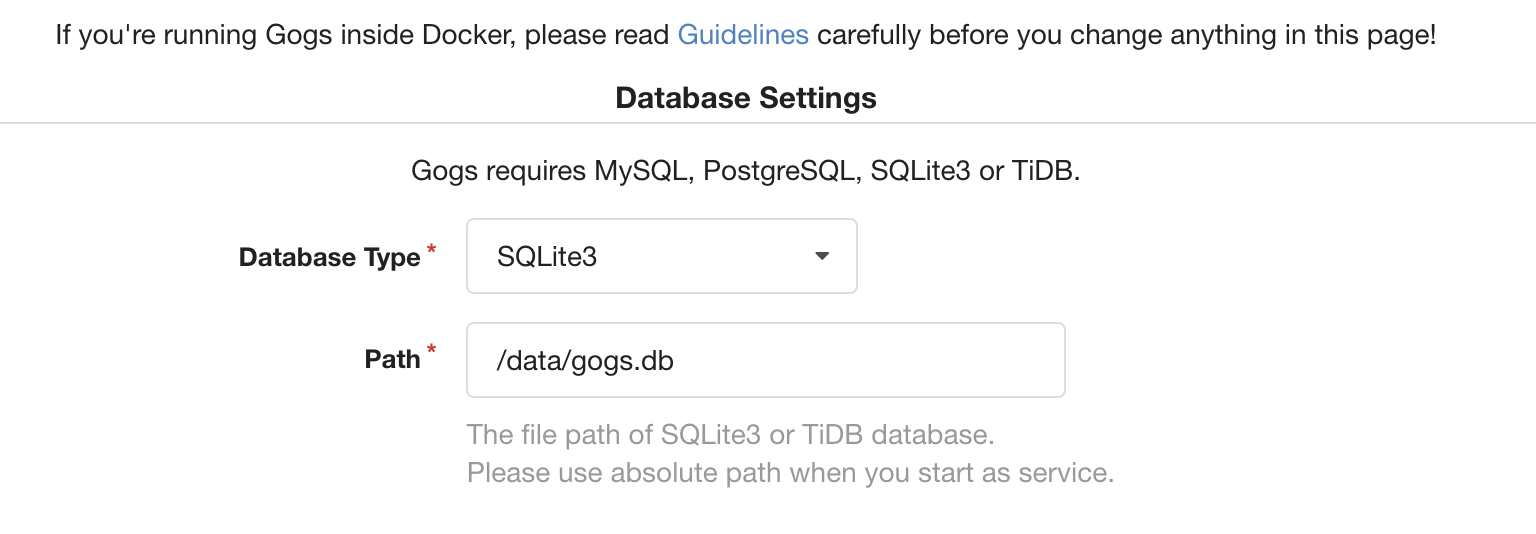
The first stop on the install screen for Gogs is the database settings. As mentioned at the start, we want to set this to SQLlite3, which is nicely self-contained. We'll also want to make sure that the path is `/data/gogs.db` (an absolute path, not a relative one).
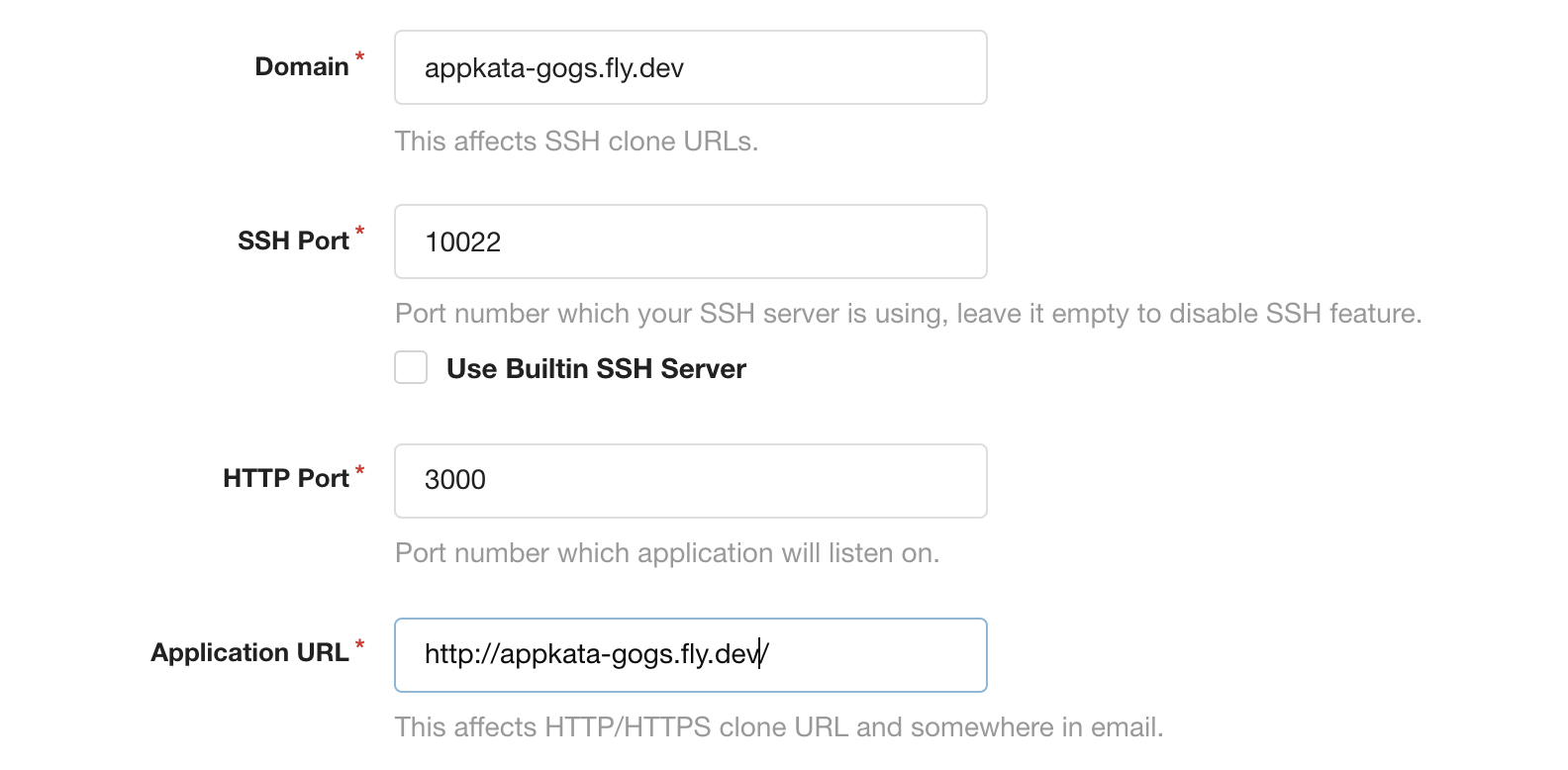
Scroll down and you'll come the application settings. We'll want to change the domain to the Fly domain (or your custom domain name). You'll also want to change the ssh port to the one we set in the fly.toml services (10022). The HTTP port doesn't need to change but the application URL should change to the same domain as the application URL and there's no need to set a port in the URL.
Finally, make sure to create your admin account otherwise anyone logging in first to the server will get access and thats not good.
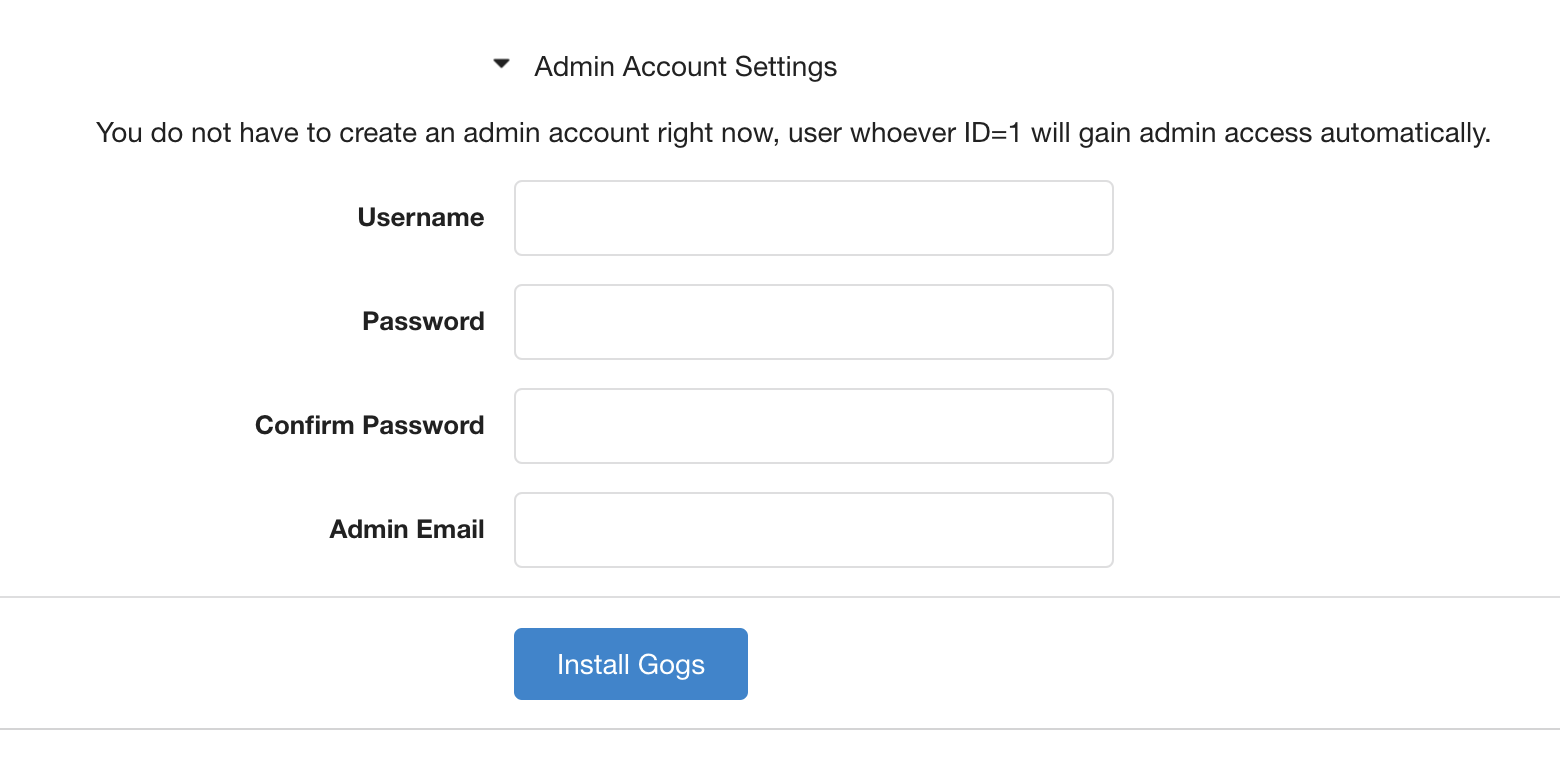
Click to install Gogs and it'll be set up with this configuration. You can now go back to the front page - run `fly open` if you can't remember the URL - and log in. You now have your own Git repository, issues tracker and more.
## Notes
* Once set up, the configuration is effectively frozen - remember this when setting up. The clear the data and configuration, `fly suspend` the app, destroy the existing volume and create a new similarly named volume, then `fly resume` the app.
## Discuss
* You can discuss this example on the [community.fly.io](https://community.fly.io/t/gogs-standalone-git-service-as-a-fly-example/358) topic.