> ## Documentation Index
> Fetch the complete documentation index at: https://docs.fly.io/llms.txt
> Use this file to discover all available pages before exploring further.
# Run Machines with flyctl
# This Document is Stale!
This document illustrates some ways to work with Fly Machines individually using flyctl, and was written before Fly Apps V2 made it possible to manage Machines as a group, using a `fly.toml` config file and `fly deploy`. For most web apps, the [Fly Apps docs](/apps) are a better place to start!
We talk up the Machines API for running user code, for ephemeral jobs, or both. Fly Machines are also the VM building blocks for V2 of the [Fly.io app-platform-as-a-service offering](/launch/index).
flyctl provides commands for managing individual Machines from the CLI, on a level more granular than `fly deploy`ing an app.
The [`fly machine` command docs](/flyctl/cmd/fly_machine) are another good resource.
## Elements of a Machines Web App
To get a single Machine running a stateless app, and serving it to the world at `.fly.dev`, you need to assemble the following pieces:
1. A Machines-flavoured [Fly App](/apps/overview)—you're not using `fly deploy` to manage the app's Machines, but you still need an app, as it's the administrative entity that owns your VMs and things like anycast IPs and volumes
2. At least an IPv4 public anycast IP address
3. A port mapping for the HTTP service you want to expose
4. A Docker image
We cook up VMs starting from Docker images, so you need to tell the platform how to get, or build, an image.
None of this is special for Machines; if we haven't built a bells-and-whistles launcher for your kind of project, then you have to do it for V1 (Nomad) Apps launched with `fly launch` too.
The big difference here is that instead of putting an app-wide configuration into a `fly.toml` file and running `fly deploy`, we'll incorporate per-VM config into the `fly m run` (AKA `fly machine run`) command that creates the VM.
Imagine you have a Dockerfile in the current working directory, along with maybe some source code that Dockerfile draws on; and when you build it, you get an image for something that listens on internal port 8080. You want that to be reachable from the world on port 443, where browsers send HTTPS connections.
If you like to do things in an orderly fashion, you might want the App to have public IP addresses before you boot the Machine:
```
fly apps create --machines --name testrun
fly ips allocate-v4 --shared -a testrun
fly ips allocate-v6 -a testrun
fly m run . -p 443:8080/tcp:tls:http -p 80:8080/tcp:http --region yyz -a testrun
```
The last command configures and deploys the VM. See the `.` in there? That, in this case, is the path to the Dockerfile. Such a diminutive, easy-to-miss representation of *everything you want to supply for the VM to run*. Don't leave it out.
Note the allocation of a [shared IPv4 address](/networking/services#shared-ipv4) above. For regular HTTP(S) web apps, shared IPv4 works fine, and helps conserve the world's dwindling IPv4 supply (and can [save you money](/about/pricing#anycast-ip-addresses)). If your app runs other services and you need a dedicated IPv4, you can provision one by leaving out the `--shared` flag.
If your app doesn't exist yet, `fly m run` will prompt you to create it, so you can actually do this instead:
```
fly m run . -p 443:8080/tcp:tls:http -p 80:8080/tcp:http --region yyz -a testrun
fly ips allocate-v4 --shared -a testrun
fly ips allocate-v6 -a testrun
```
## Example: A Simple Public Web App
Let's make this more concrete with an example. I want to run a tiny Python/Flask app with almost-static content.
While there's no need to go down to the level of controlling individual Machines for a simple web app—you'd just run `fly launch` to get a [Fly App](/apps) configured and have the conveniences of `fly deploy`—we can do it if we want to.
Heads up! I'm also going to make a little mistake or two to help us learn our way around a Machines App.
I'll get the code and Dockerfile from the repo:
```bash theme={null}
git clone https://github.com/fly-apps/hello-gunicorn-flask
```
Then I'll go into the dir:
```bash theme={null}
cd hello-gunicorn-flask
```
And just try it out:
```
fly apps create --machines --name testrun
fly ips allocate-v4 --shared -a testrun
fly ips allocate-v6 -a testrun
fly m run . -p 443:8080/tcp:tls:http -p 80:8080/tcp:http --region yyz -a testrun
```
Once I get a message like this:
```
Success! A machine has been successfully launched in app testrun, waiting for it to be started
Machine ID: 21781160b41d89
Instance ID: 01GMF1WWXBEQR0RSHAN7XVWPK4
State: created
Machine started, you can connect via the following private ip
fdaa:0:3b99:a7b:aa4:3c65:c2cc:2
```
I can check on my app!
```
fly apps open -a testrun
```
…and, I get nothing. (Note that I'm appending `-a` to most of my flyctl commands, because we're not using a `fly.toml` for configuration, and a `fly.toml` in the working directory is where flyctl usually gets the app name that it thinks you're implying when you don't specify one.)
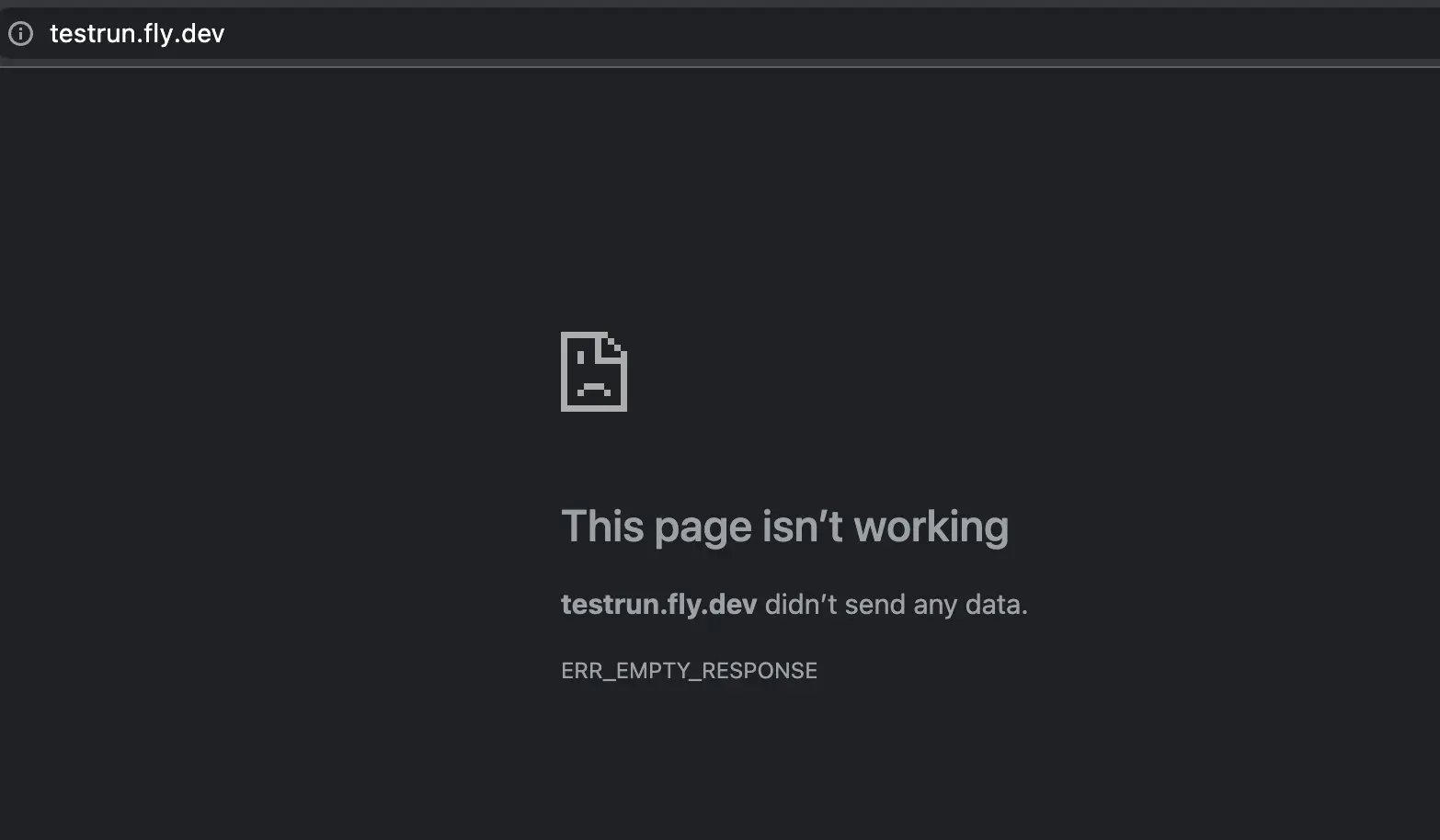 What can be wrong here?
Start with the go-to `fly status -a testrun`:
```bash cmd theme={null}
fly status -a testrun
```
```out out theme={null}
App
Name = testrun
Owner = personal
Hostname = testrun.fly.dev
Platform = machines
ID STATE REGION HEALTH CHECKS IMAGE CREATED UPDATED
21781160b41d89 started yyz testrun:deployment-01GMF1WS8C28CDDYAFBVHA8F0Q 2022-12-17T03:26:30Z 2022-12-17T03:26:32Z
```
I have a VM `started`. I can look for more details about it using `fly m status`:
```bash cmd theme={null}
fly m status 21781160b41d89 -a testrun
```
```out out theme={null}
Machine ID: 21781160b41d89
Instance ID: 01GMF1WWXBEQR0RSHAN7XVWPK4
State: started
VM
ID = 21781160b41d89
Instance ID = 01GMF1WWXBEQR0RSHAN7XVWPK4
State = started
Image = testrun:deployment-01GMF1WS8C28CDDYAFBVHA8F0Q
Name = lingering-shape-1541
Private IP = fdaa:0:3b99:a7b:aa4:3c65:c2cc:2
Region = yyz
Process Group =
Memory = 256
CPUs = 1
Created = 2022-12-17T03:26:30Z
Updated = 2022-12-17T03:26:32Z
Command =
Event Logs
STATE EVENT SOURCE TIMESTAMP INFO
started start flyd 2022-12-16T22:26:32.888-05:00
created launch user 2022-12-16T22:26:30.338-05:00
```
Everything looks fine here. How about logs:
```bash theme={null}
fly logs -a testrun
```
I see a lot of messages from the proxy like `[info]Still waiting for machine to listen on 0.0.0.0:8080 (waited 43.329214343s so far)`
and `error.message="failed to connect to fly machine: Gave up after 50 retries"`. So my Machine is started, but it's not listening where I've told the Fly Proxy it would be. If I scroll up closer to the start of the logs:
```
[INFO] Listening at: http://0.0.0.0:4999 (512)
```
Oh noes, I told Fly Proxy to send requests to internal port 8080 when all along, my process was listening on 4999!
## Update the Machine configuration
If I were working with a [Fly App](/apps/overview) instead of with Machines directly, I'd edit the internal port in my `fly.toml` and redeploy. I'll do the Fly Machines equivalent: `fly m update` with the modification I want to make to the configuration.
```bash cmd theme={null}
fly m update -p 443:4999/tcp:tls:http -p 80:4999/tcp:http 21781160b41d89 -a testrun
```
```out out theme={null}
Searching for image 'registry.fly.io/testrun:deployment-01GMF1WS8C28CDDYAFBVHA8F0Q' remotely...
image found: img_3mno4w881q64k18q
Image: registry.fly.io/testrun:deployment-01GMF1WS8C28CDDYAFBVHA8F0Q
Image size: 54 MB
Configuration changes to be applied to machine: 21781160b41d89 (lingering-shape-1541)
{
...
... // 2 identical lines
{
"protocol": "tcp",
- "internal_port": 8080,
+ "internal_port": 4999,
"ports": [
{
... // 8 identical lines
{
"protocol": "tcp",
- "internal_port": 8080,
+ "internal_port": 4999,
"ports": [
{
... // 15 identical lines
? Apply changes? Yes
Updating machine 21781160b41d89
No health checks found
Machine 21781160b41d89 updated successfully!
==> Monitoring health checks
No health checks found
Monitor machine status here:
https://fly.io/apps/testrun/machines/21781160b41d89
```
The VM is restarted with the updated configuration.
Now I try `fly apps open -a testrun` again, and voilà:
What can be wrong here?
Start with the go-to `fly status -a testrun`:
```bash cmd theme={null}
fly status -a testrun
```
```out out theme={null}
App
Name = testrun
Owner = personal
Hostname = testrun.fly.dev
Platform = machines
ID STATE REGION HEALTH CHECKS IMAGE CREATED UPDATED
21781160b41d89 started yyz testrun:deployment-01GMF1WS8C28CDDYAFBVHA8F0Q 2022-12-17T03:26:30Z 2022-12-17T03:26:32Z
```
I have a VM `started`. I can look for more details about it using `fly m status`:
```bash cmd theme={null}
fly m status 21781160b41d89 -a testrun
```
```out out theme={null}
Machine ID: 21781160b41d89
Instance ID: 01GMF1WWXBEQR0RSHAN7XVWPK4
State: started
VM
ID = 21781160b41d89
Instance ID = 01GMF1WWXBEQR0RSHAN7XVWPK4
State = started
Image = testrun:deployment-01GMF1WS8C28CDDYAFBVHA8F0Q
Name = lingering-shape-1541
Private IP = fdaa:0:3b99:a7b:aa4:3c65:c2cc:2
Region = yyz
Process Group =
Memory = 256
CPUs = 1
Created = 2022-12-17T03:26:30Z
Updated = 2022-12-17T03:26:32Z
Command =
Event Logs
STATE EVENT SOURCE TIMESTAMP INFO
started start flyd 2022-12-16T22:26:32.888-05:00
created launch user 2022-12-16T22:26:30.338-05:00
```
Everything looks fine here. How about logs:
```bash theme={null}
fly logs -a testrun
```
I see a lot of messages from the proxy like `[info]Still waiting for machine to listen on 0.0.0.0:8080 (waited 43.329214343s so far)`
and `error.message="failed to connect to fly machine: Gave up after 50 retries"`. So my Machine is started, but it's not listening where I've told the Fly Proxy it would be. If I scroll up closer to the start of the logs:
```
[INFO] Listening at: http://0.0.0.0:4999 (512)
```
Oh noes, I told Fly Proxy to send requests to internal port 8080 when all along, my process was listening on 4999!
## Update the Machine configuration
If I were working with a [Fly App](/apps/overview) instead of with Machines directly, I'd edit the internal port in my `fly.toml` and redeploy. I'll do the Fly Machines equivalent: `fly m update` with the modification I want to make to the configuration.
```bash cmd theme={null}
fly m update -p 443:4999/tcp:tls:http -p 80:4999/tcp:http 21781160b41d89 -a testrun
```
```out out theme={null}
Searching for image 'registry.fly.io/testrun:deployment-01GMF1WS8C28CDDYAFBVHA8F0Q' remotely...
image found: img_3mno4w881q64k18q
Image: registry.fly.io/testrun:deployment-01GMF1WS8C28CDDYAFBVHA8F0Q
Image size: 54 MB
Configuration changes to be applied to machine: 21781160b41d89 (lingering-shape-1541)
{
...
... // 2 identical lines
{
"protocol": "tcp",
- "internal_port": 8080,
+ "internal_port": 4999,
"ports": [
{
... // 8 identical lines
{
"protocol": "tcp",
- "internal_port": 8080,
+ "internal_port": 4999,
"ports": [
{
... // 15 identical lines
? Apply changes? Yes
Updating machine 21781160b41d89
No health checks found
Machine 21781160b41d89 updated successfully!
==> Monitoring health checks
No health checks found
Monitor machine status here:
https://fly.io/apps/testrun/machines/21781160b41d89
```
The VM is restarted with the updated configuration.
Now I try `fly apps open -a testrun` again, and voilà:
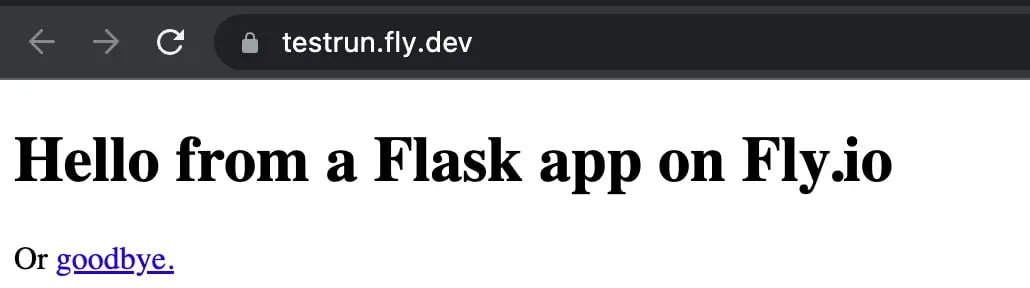 (If you're following along and have this example app deployed, try going to `https://.fly.dev/`)
## Update the Machine's Docker image
Imagine a hypothetical future me, with several VMs running my app in different regions (to serve users around the world faster) sending a GET request to one of my App's VMs at its private IPv6 on the internal WireGuard network, and noticing that I haven't configured my process to listen on IPv6! To fix that, I'll have to change something inside the Docker image, and we may as well look at that now, while we're on the subject of fixing mistakes in Machines.
Again, with a V1 App, I'd use `fly deploy` for this. Can we use `fly m update` to rebuild and restart a Machine? Why, yes, we can!
```bash cmd theme={null}
fly m update 21781160b41d89 --dockerfile ./Dockerfile -a testrun
```
```out out theme={null}
...
--> Pushing image done
Image: registry.fly.io/testrun:deployment-01GMPHMHN24ZCHR4Q0RW8QE99R
Image size: 141 MB
Configuration changes to be applied to machine: 21781160b41d89 (lingering-shape-1541)
... // 6 identical lines
"tty": false
},
- "image": "registry.fly.io/testrun:deployment-01GMPH92RA8WRFFTZH0RM1KQMJ",
+ "image": "registry.fly.io/testrun:deployment-01GMPHMHN24ZCHR4Q0RW8QE99R",
"metadata": null,
"restart": {
... // 26 identical lines
? Apply changes? Yes
Updating machine 21781160b41d89
No health checks found
Machine 21781160b41d89 updated successfully!
Monitor machine status here:
https://fly.io/apps/testrun/machines/21781160b41d89
```
This is not horrible to do manually on three instances, but pretty tedious if you have 20. There's a better way, if all the VMs in the App are meant to be running from the same image: `fly image update`.
I can build a new image and push it to the Fly.io image repository with:
```bash theme={null}
fly deploy --image-label v2 --build-only --push -a testrun
```
I can skip giving it a label, but a sensible label makes the difference between doing
```bash theme={null}
fly image update --image registry.fly.io/testrun:deployment-01GMHP0PH4NQD7EBTGXPNEFDJR -a testrun
```
and
```bash theme={null}
fly image update --image registry.fly.io/testrun:v2 -a testrun
```
to update every VM on the App to the new image.
## Add an instance in another region
### By creating a new Machine
I can create another Machine with `fly m run` using the same image as the others are running, on the same App, but in a different region (use the correct port this time):
```bash theme={null}
fly m run registry.fly.io/testrun:v12 -p 443:4999/tcp:tls:http -p 80:4999/tcp:http --region syd -a testrun
```
### By cloning a Machine
Or I can `fly m clone` an existing instance for the same effect (this command is in flux and will probably make more sense in the future for general VM use):
```bash cmd theme={null}
fly m clone 21781160b41d89 --region ord -a testrun
```
```out out theme={null}
Cloning machine 21781160b41d89 into region ord
Provisioning a new machine with image registry.fly.io/testrun:v12...
Machine 9080567add5087 has been created...
Waiting for machine 9080567add5087 to start...
No health checks found
Machine has been successfully cloned!
```
At this point I've deployed my app, fixed the mistakes I made while deploying it, and scaled it out to several datacentres around the world. Here are a few other things that could come in handy while administering this app:
## Open a shell on a Machine
We can do this using just flyctl and [user-mode WireGuard](https://fly.io/blog/our-user-mode-wireguard-year/), thanks to a program called [Hallpass](https://fly.io/blog/ssh-and-user-mode-ip-wireguard/) that runs on each Fly.io App VM.
You can ssh into a specific Machine with `fly ssh console -s`:
```bash cmd theme={null}
fly ssh console -s -a testrun
```
```out out theme={null}
? Select VM: [Use arrows to move, type to filter]
> ord: 9080567add5087 fdaa:0:3b99:a7b:8ba9:46d4:87d6:2 polished-mountain-3926
yyz: 21781160b41d89 fdaa:0:3b99:a7b:aa4:3c65:c2cc:2 lingering-shape-1541
lax: 9185340f472683 fdaa:0:3b99:a7b:7d16:958:b788:2 white-shape-8276
```
If you can ssh into it, that's a sure sign of life. You can also make modifications from in there. Just be aware that anything you do to the root filesystem (i.e. not on a mounted Fly Volume or a separate database app) will be undone next time you start up the Machine.
Note: You can only get a console interface on a VM if there's some sort of shell installed in your project.
## Scale Down Temporarily By Stopping a VM
Use `fly m stop` to stop a Machine; `fly m start` to get it going again.
There is a subtlety here where if you have a public service defined, if the Fly Proxy happens to send a request to a stopped Machine, it will try to get it started, too. One mitigation for this is to have Machines run a main process that exits after some time idle, thus shutting down the VM. Then if the proxy wakes a VM up just for some random bot hit, it won't stay up indefinitely.
## Scale Down Permanently
Use `fly m stop`, then `fly m remove` to remove a Machines VM entirely.
## Delete the app
If I want to yeet the whole App and all its Machines, IP addresses, Volumes, etc., I can run `fly apps destroy` on it, just like a V1 App.
(If you're following along and have this example app deployed, try going to `https://.fly.dev/`)
## Update the Machine's Docker image
Imagine a hypothetical future me, with several VMs running my app in different regions (to serve users around the world faster) sending a GET request to one of my App's VMs at its private IPv6 on the internal WireGuard network, and noticing that I haven't configured my process to listen on IPv6! To fix that, I'll have to change something inside the Docker image, and we may as well look at that now, while we're on the subject of fixing mistakes in Machines.
Again, with a V1 App, I'd use `fly deploy` for this. Can we use `fly m update` to rebuild and restart a Machine? Why, yes, we can!
```bash cmd theme={null}
fly m update 21781160b41d89 --dockerfile ./Dockerfile -a testrun
```
```out out theme={null}
...
--> Pushing image done
Image: registry.fly.io/testrun:deployment-01GMPHMHN24ZCHR4Q0RW8QE99R
Image size: 141 MB
Configuration changes to be applied to machine: 21781160b41d89 (lingering-shape-1541)
... // 6 identical lines
"tty": false
},
- "image": "registry.fly.io/testrun:deployment-01GMPH92RA8WRFFTZH0RM1KQMJ",
+ "image": "registry.fly.io/testrun:deployment-01GMPHMHN24ZCHR4Q0RW8QE99R",
"metadata": null,
"restart": {
... // 26 identical lines
? Apply changes? Yes
Updating machine 21781160b41d89
No health checks found
Machine 21781160b41d89 updated successfully!
Monitor machine status here:
https://fly.io/apps/testrun/machines/21781160b41d89
```
This is not horrible to do manually on three instances, but pretty tedious if you have 20. There's a better way, if all the VMs in the App are meant to be running from the same image: `fly image update`.
I can build a new image and push it to the Fly.io image repository with:
```bash theme={null}
fly deploy --image-label v2 --build-only --push -a testrun
```
I can skip giving it a label, but a sensible label makes the difference between doing
```bash theme={null}
fly image update --image registry.fly.io/testrun:deployment-01GMHP0PH4NQD7EBTGXPNEFDJR -a testrun
```
and
```bash theme={null}
fly image update --image registry.fly.io/testrun:v2 -a testrun
```
to update every VM on the App to the new image.
## Add an instance in another region
### By creating a new Machine
I can create another Machine with `fly m run` using the same image as the others are running, on the same App, but in a different region (use the correct port this time):
```bash theme={null}
fly m run registry.fly.io/testrun:v12 -p 443:4999/tcp:tls:http -p 80:4999/tcp:http --region syd -a testrun
```
### By cloning a Machine
Or I can `fly m clone` an existing instance for the same effect (this command is in flux and will probably make more sense in the future for general VM use):
```bash cmd theme={null}
fly m clone 21781160b41d89 --region ord -a testrun
```
```out out theme={null}
Cloning machine 21781160b41d89 into region ord
Provisioning a new machine with image registry.fly.io/testrun:v12...
Machine 9080567add5087 has been created...
Waiting for machine 9080567add5087 to start...
No health checks found
Machine has been successfully cloned!
```
At this point I've deployed my app, fixed the mistakes I made while deploying it, and scaled it out to several datacentres around the world. Here are a few other things that could come in handy while administering this app:
## Open a shell on a Machine
We can do this using just flyctl and [user-mode WireGuard](https://fly.io/blog/our-user-mode-wireguard-year/), thanks to a program called [Hallpass](https://fly.io/blog/ssh-and-user-mode-ip-wireguard/) that runs on each Fly.io App VM.
You can ssh into a specific Machine with `fly ssh console -s`:
```bash cmd theme={null}
fly ssh console -s -a testrun
```
```out out theme={null}
? Select VM: [Use arrows to move, type to filter]
> ord: 9080567add5087 fdaa:0:3b99:a7b:8ba9:46d4:87d6:2 polished-mountain-3926
yyz: 21781160b41d89 fdaa:0:3b99:a7b:aa4:3c65:c2cc:2 lingering-shape-1541
lax: 9185340f472683 fdaa:0:3b99:a7b:7d16:958:b788:2 white-shape-8276
```
If you can ssh into it, that's a sure sign of life. You can also make modifications from in there. Just be aware that anything you do to the root filesystem (i.e. not on a mounted Fly Volume or a separate database app) will be undone next time you start up the Machine.
Note: You can only get a console interface on a VM if there's some sort of shell installed in your project.
## Scale Down Temporarily By Stopping a VM
Use `fly m stop` to stop a Machine; `fly m start` to get it going again.
There is a subtlety here where if you have a public service defined, if the Fly Proxy happens to send a request to a stopped Machine, it will try to get it started, too. One mitigation for this is to have Machines run a main process that exits after some time idle, thus shutting down the VM. Then if the proxy wakes a VM up just for some random bot hit, it won't stay up indefinitely.
## Scale Down Permanently
Use `fly m stop`, then `fly m remove` to remove a Machines VM entirely.
## Delete the app
If I want to yeet the whole App and all its Machines, IP addresses, Volumes, etc., I can run `fly apps destroy` on it, just like a V1 App.