


Creating a Managed Postgres Cluster from the Dashboard
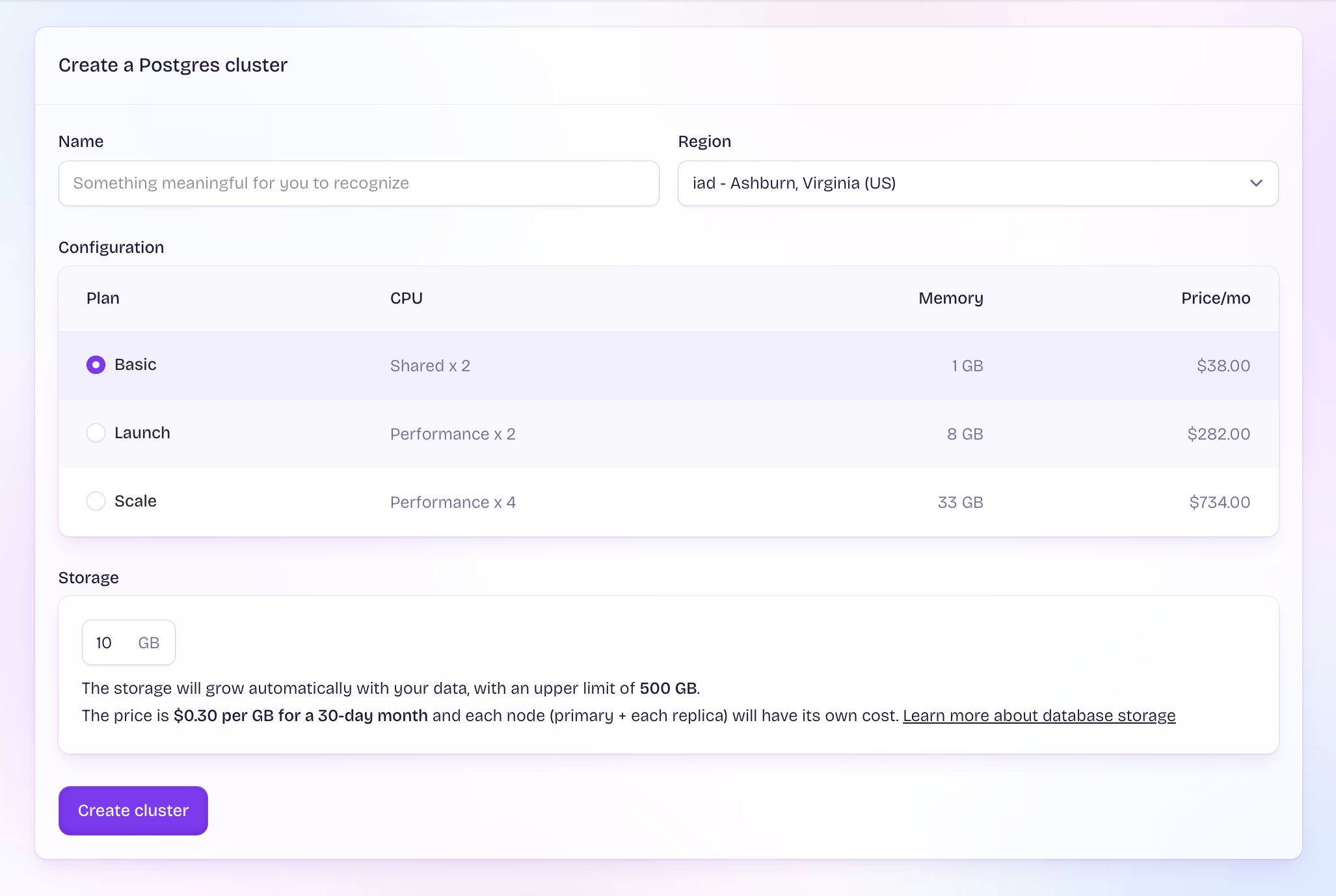
To create a new Managed Postgres (MPG) cluster, visit your Fly.io dashboard, select the “Managed Postgres” tab on the left, and click the “Create new cluster” button. You’ll be prompted to set your clusters:- Cluster name (must be unique within your organization)
- Region (see available MPG regions)
- A plan with predefined hardware resources:
- Basic: 2 shared vCPUs, 1GB RAM
- Starter: 2 shared vCPUs, 2GB RAM
- Launch: 2 Performance vCPUs, 8GB RAM
- Scale: 4 Performance vCPUs, 32GB RAM
- Performance: 8 Performance vCPUs, 64GB RAM
- Initial storage size: Up to 500 GB at creation
- Optional Third Party Extensions to install (Currently only PGVector is supported)
Creating a Managed Postgres Cluster from Flyctl

--volume-size flag:
Attach an application to your Managed Postgres Database
To connect your application running on Fly.io to your Managed Postgres instance, you’ll need to add the DB connection details as a secret on your app. This can be done from the Dashboard or via flyctl.Attaching an app from your MPG dashboard
From the “Connect” tab of your MPG Cluster page you can attach a specific app in your organization to your database.- Select the app to attach in the dropdown
- If needed, customize the variable name to use for the database connection URL. The default is
DATABASE_URL. If your chosen app already has a secret namedDATABASE_URL, you will need to choose a new variable name before you can deploy. - Select “Set secret and deploy”. This will trigger a deploy of your chosen app to add the new secret.
- Your app can now use the
DATABASE_URLenvironment variable to connect to your database
Attaching an app using flyctl
To attach an application to your database using flyctl run:fly mpg list command.
Both of the attachment options will use the pooled connection URL, which uses PGBouncer to help manage database connections efficiently. This is recommended for most apps.