> ## Documentation Index
> Fetch the complete documentation index at: https://docs.fly.io/llms.txt
> Use this file to discover all available pages before exploring further.
# Cursor Cloud Agents
[Cursor Self-Hosted Machines](https://cursor.com/docs/cloud-agent/self-hosted) let Cursor run the agent loop and the model while the agent's tool calls, the commands it runs and the files it edits, execute on a machine you control. The Sprites dashboard turns a Sprite into one of those machines with a form: paste a Cursor API key, name the machine, and it appears under **My Machines** in Cursor. No terminal, no scripts.
This works on any Cursor plan with Cloud Agents.
## How it works
Each Cursor machine is one Sprite. On it, a `cursor-worker` [service](/sprites/concepts/services) runs the Cursor CLI's worker, which opens a single outbound connection to Cursor. Cursor forwards the agent's tool calls over that connection and the worker executes them in the Sprite's workspace. Nothing connects inbound.
While the worker is connected, the service holds the Sprite active through the [Tasks API](/sprites/keeping-sprites-running). When no agent has used the machine for 10 minutes, the worker exits, the hold is released, and the Sprite [pauses](/sprites/concepts/lifecycle) with its workspace intact. Cursor lists the machine as offline until you start it again.
## Before you begin
* A **Sprites organization** with Sprites active.
* A **Cursor user API key**, created under [API keys in the Cursor dashboard](https://cursor.com/dashboard/api). The dashboard verifies the key with Cursor before it builds anything, and never stores it: the key lives only in the worker's environment on the Sprite.
* **Self-hosted machines enabled** for the Cursor account that owns the key: open [Cloud Agents settings](https://cursor.com/dashboard/cloud-agents#self-hosted) in the Cursor dashboard and turn on **Enable Self-hosted Machines**.
The Cursor account that owns the key must be on the current privacy setting, not legacy privacy mode. Legacy privacy mode blocks Cloud Agents, and a self-hosted worker is still a Cloud Agent from Cursor's side: it connects and reports it is running, but Cursor never lists it. Check under **Settings › Privacy** in Cursor.
## Create a Cursor machine
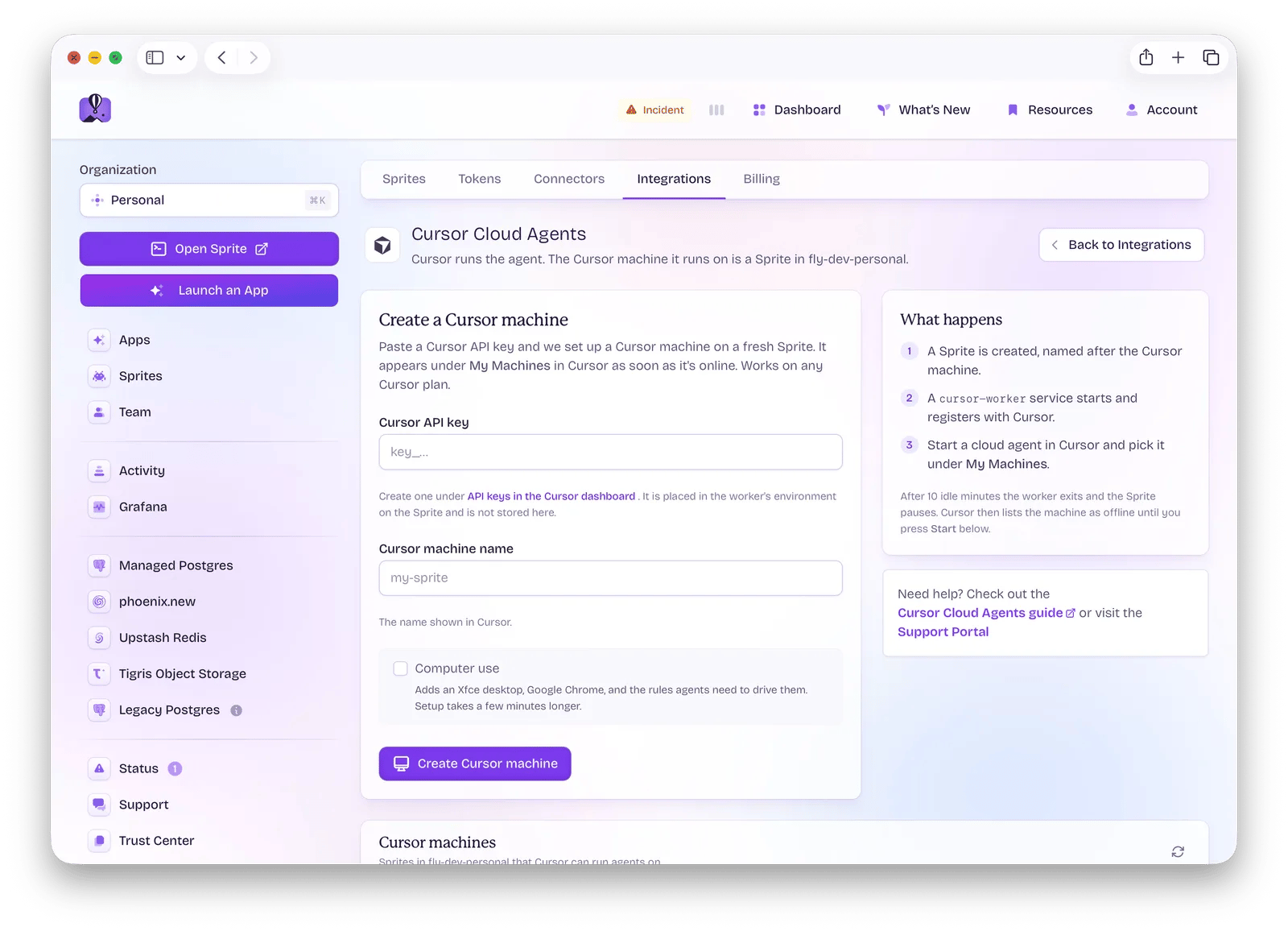
1. In the Fly.io dashboard, open your organization's **Sprites** page and choose the **Integrations** tab.
2. Open **Cursor Cloud Agents**.
3. Paste your **Cursor API key** and give the machine a **name**. That name is what Cursor shows under My Machines; the Sprite is named `cursor-`.
4. Check **Computer use** if the agent should have a desktop and a browser. See [Computer use](#computer-use) for what that adds.
5. Click **Create Cursor machine**.
The dashboard creates the Sprite, installs the worker service, starts it, and waits for Cursor to accept the machine. It takes about a minute, or a few minutes with computer use. When it is done, the machine appears in the **Cursor machines** table below the form.
## Use it in Cursor
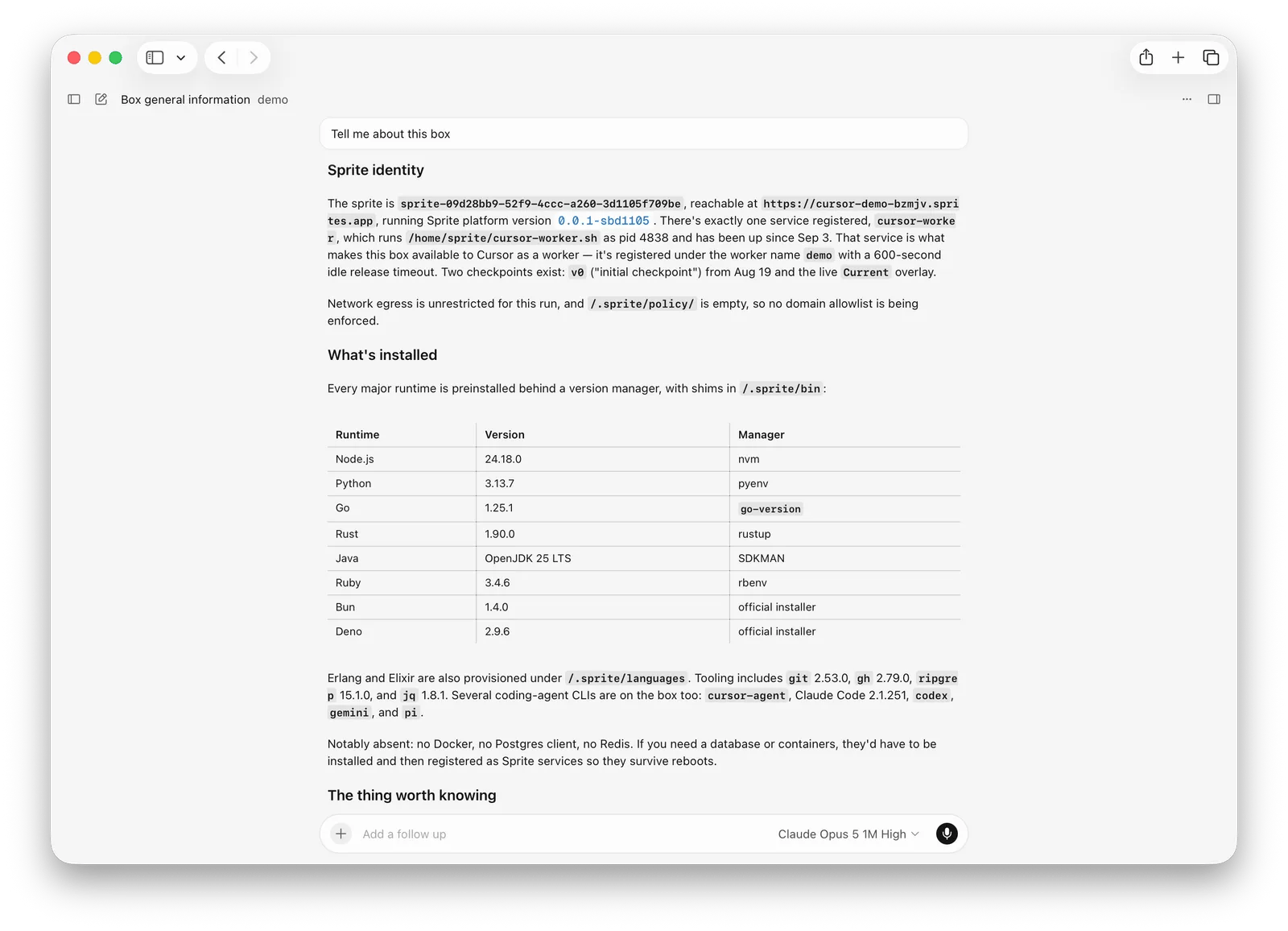
Each row in the table has **Open in Cursor**, which opens Cursor's agents page with that machine selected. Or start a Cloud Agent in Cursor and pick the machine under **My Machines**. Either way, the agent's tool calls now run in the Sprite, and whatever repository the task names is cloned into `~/workspace` on it.
The machine keeps its workspace between sessions. A follow-up on the same machine finds the files where the last agent left them.
## Manage machines
The table shows one of three states for each machine:
| Status | Meaning |
| ----------- | --------------------------------------------------------------- |
| **Online** | The worker is connected. Cursor lists the machine as available. |
| **Stopped** | The Sprite is up but the worker is not running. |
| **Paused** | The Sprite is paused. The workspace is kept. |
* **Start** runs the worker service, waking the Sprite if it was paused. The machine is back in Cursor within a few seconds, with the same worker id as before.
* **Stop** stops the worker. Cursor lists the machine as offline at once, and the Sprite pauses on its own about half a minute later.
* **Delete** destroys the Sprite, including the workspace. You type the Sprite's name to confirm.
A worker that no agent uses for 10 minutes stops by itself, exactly as if you had pressed Stop.
## Computer use
With **Computer use** checked, the dashboard installs an Xfce desktop, Google Chrome, and Cursor's [computer use](https://cursor.com/docs/cloud-agent/self-hosted/computer-use) support on the Sprite, so the agent can click, type, and take screenshots. Setup takes a few minutes longer. Ask the agent to take a screenshot to confirm the desktop is up.
Two details are handled for you. Cursor's shell tool kills a command's whole process group when the command returns, so a browser started as a normal background job dies at once; a wrapper in front of `google-chrome` always starts it detached and skips the first-run and crash-restore dialogs that would otherwise hide the browser window. And a rule written to `~/.cursor/rules` on the Sprite explains the same to the agent for any other GUI program. Edit that file if your desktop needs other instructions.
Cursor's `--share-desktop` option lets people watch the agent's desktop, but with the current Cursor CLI it puts the agent's shell and its screenshot tool on different displays, so the agent sees an empty desktop and loops. The dashboard runs computer use without desktop sharing.
## Network access
A worker needs outbound HTTPS to `api2.cursor.sh` and `api2direct.cursor.sh`, plus `cloud-agent-artifacts.s3.us-east-1.amazonaws.com` for artifact uploads. The default Sprite [network policy](/sprites/concepts/networking) allows all of these. If you restrict egress, keep those hosts and whatever git hosts, package registries, and internal services your agents need.
## Troubleshooting
| Symptom | Likely cause | Fix |
| ----------------------------------------------------------------------------------------------------------------- | -------------------------------------------------------------------------- | ------------------------------------------------------------------------------------------------------------------------------------------- |
| "Cursor rejected the API key" when you create a machine | The key is wrong, revoked, or not a user API key | Create a user API key under [API keys](https://cursor.com/dashboard/api) and try again. |
| The dashboard waits on "Waiting for Cursor to accept the machine" and then reports that Cursor hasn't accepted it | The account that owns the key is on legacy privacy mode | Switch that account to the current privacy setting, then create the machine again with the same name. Setup resumes on the existing Sprite. |
| The machine is not under My Machines in Cursor | Cursor is signed in as a different user than the one who owns the key | Sign in to Cursor as the key's owner. |
| A machine you did not touch shows **Paused** | Nobody used it for 10 minutes, so the worker stopped and the Sprite paused | Press **Start**. |
| A row shows **setup incomplete** | Setup did not finish, or the Sprite was set up outside the dashboard | Create a machine with the same name. Setup is safe to repeat. |
| With computer use, the agent says its browser "isn't visible" | The agent started the browser its own way and the window closed | Ask it to launch `google-chrome` again; the wrapper detaches it. The rule in `~/.cursor/rules` on the Sprite tells it how. |
## Related documentation
Cursor's reference for My Machines and self-hosted workers
Supervised long-running processes inside a Sprite
The Tasks API hold the worker uses while it is connected
How a Sprite pauses, wakes, and keeps its filesystem