

Create a database
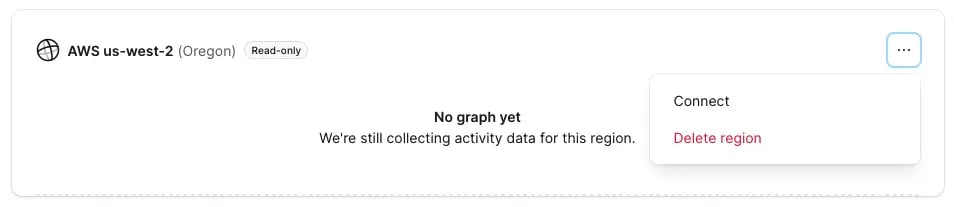
The sample app assumes a database already exists. You’ll need to create that database before running the app. Since read-only regions can currently only be created using the PlanetScale UI, this guide does not use their CLI. Sign in to PlanetScale, creating an account if you don’t already have one. You can use a free account to create a database however you will need to upgrade to their paid Scaler, Team, or Enterprise plan if you would like to add read-only regions. Click on the black ‘New database’ button and pick ‘Create new database’. Give it a name and choose its region. This is your primary database (we’ll refer to it in multiple places later on). Choose the closest region to where you will deploy your app for the best performance: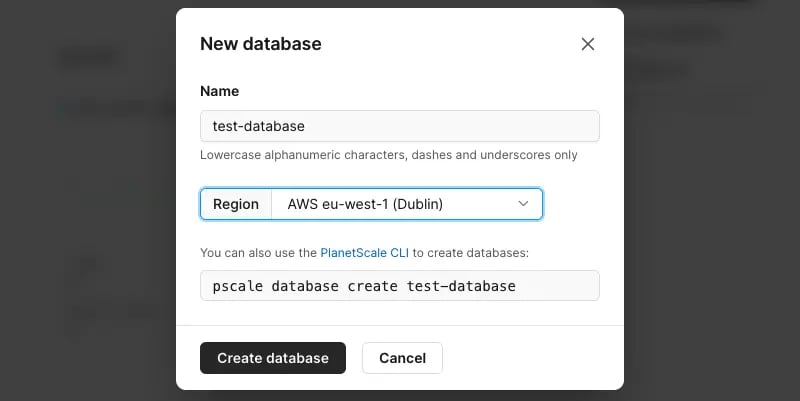
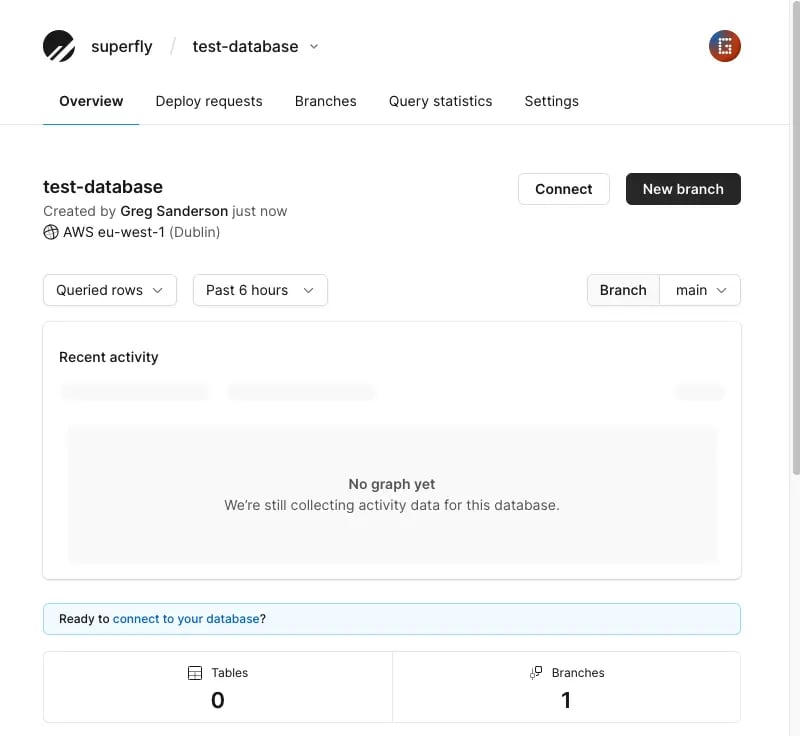
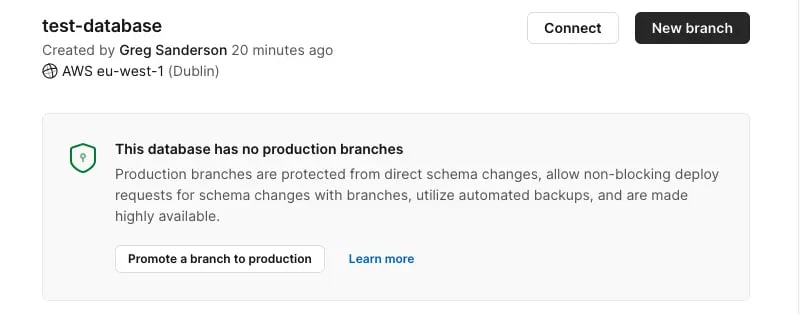
main branch will be automatically created. It will take a few seconds to initialise so wait until that notification disappears. You should see a page similar to this:
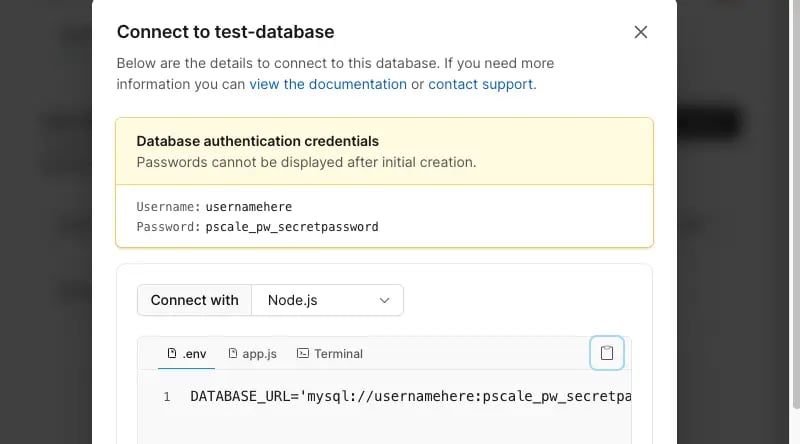



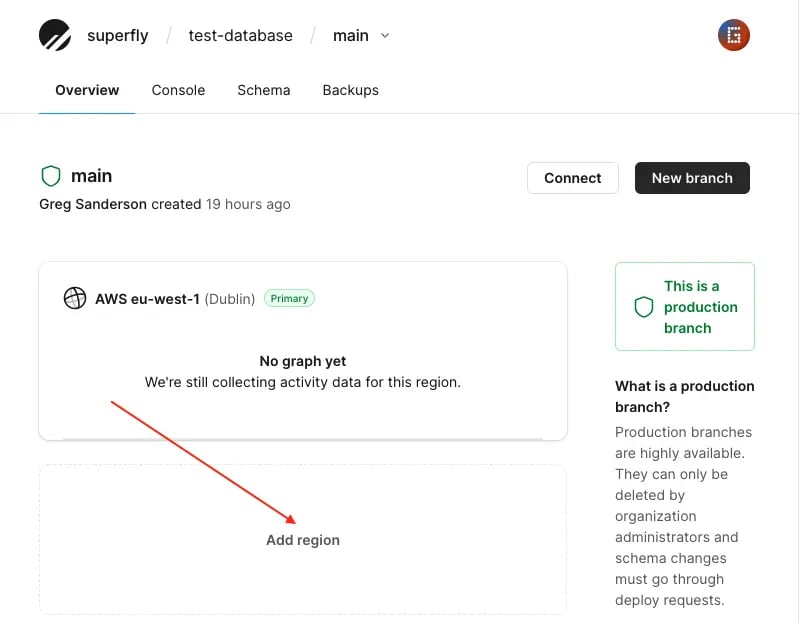
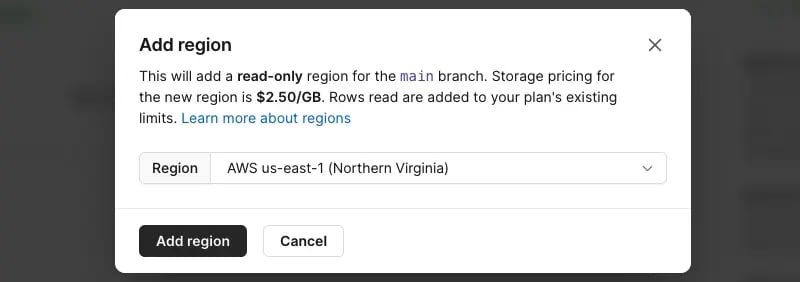
"mysql://**username**:**password**@**host**/**database-name**?ssl={"rejectUnauthorized":true}":
Run the app locally
To run it locally you will need NodeJS.- Clone the
nodejs-planetscale-read-replicasrepo. - Run
npm installto install its dependencies. - Duplicate
.env.example, naming it.env. - The application needs to know about all the available regions. There are different ways this could be done. We’ve opted to use a single comma-separated string of connection strings. In the
.env, setDATABASE_URLas all of the connection URLs you have, separated by a comma. The first one should be the one for your primary (and possibly only) database. Follow it with those for any read-only regions you’ve added. It will look something like this. Note the comma between them:
- Run
npm start. - You should be able to visit
http://localhost:3000and seehello world: that confirms the app is running. - Visit
http://localhost:3000/readand you should see a list of fruits fetched from PlanetScale. Note when run locally, this sample app does not know where you are in the world and so it can’t pick the closest database. It will default to using the first connection string (which must be the primary). - Visit
http://localhost:3000/writeand you should see a row has been added to the PlanetScale database. Normally data is added by a non-GET request however using a GET makes it easier to check using a browser.
Deploy the app to Fly
If you haven’t already done so, install the Fly CLI and then log in to Fly. We’ve added a few files to make this sample app ready to run on Fly: aDockerfile, .dockerignore and fly.toml. The Dockerfile tells Fly how to package the application. The .dockerignore file specifies the files/folders we want included (else it would include ones like .env that we do not want). The fly.toml file configures the application. The Fly CLI can make that for you. But since we know which variables, ports, services and so on our app needs, we made one.
Note: You’ll need to make two changes to the provided fly.toml:
-
Update the app’s name at the top to one of your choice
app = "your-name-here". -
Update the region to the one nearest your primary database:
PRIMARY_REGION = "lhr". We created our database ineu-west. But Fly uses different region names than PlanetScale. And so you need to use the Fly region you would want your primary PlanetScale database to always be used from. As an example, let’s say you have a PlanetScale database in eu-west-1. You plan on having a Fly app deployed tolhrandiad. You would setPRIMARY_REGION = "lhr"in thefly.toml, because that is the closest Fly region to the primary database’s region.
fly launch from the application’s directory.
The Fly CLI will spot the existing fly.toml:
Dockerfile:
PRIMARY_REGION above. For example, lhr.
It will ask if you want a PostgreSQL database. Type N (no) as you are using PlanetScale for its database!
Finally you are asked if you want to deploy. Type N (no). Why not deploy now? This sample application expects a DATABASE_URL connection string to be available as a secret environment variable. Now that your app is staged on Fly we can set that. So run this command (setting its value as a comma-separated list of all of the connection strings you have from PlanetScale). The sample app expects the first one to be the connection string for your primary database (the region you created the PlanetScale database in). Any subsequent ones are the connection strings for any read-only regions. The resulting command you need to run will look something like this. Note the comma between the connection strings:
Secrets are staged for the first deployment.
Now you can go ahead and deploy the app:
https://your-app-here.fly.dev you should see the “hello world” text to confirm the app is working.
If you now open its read page https://your-app-here.fly.dev/read you should see a list of fruits read from the closest PlanetScale database. And since the primary region is the closest, well it makes sense to use that:
https://your-app-here.fly.dev/write you should see a random row of data has been written. Again, this request is handled by a vm in the primary region and so the write is sent to the primary PlanetScale database:
Scaling the app
So far the app has only used the primary database. Since there is only one vm. Now we’ll test the read-only regions. Start by permitting the app to run in more regions. You can see which regions the app can run in using:eu-west-1 (Ireland), and two read-only regions in us-west-2 (US) and ap-southeast-2 (Australia). Suitably distributed to test the latency. And so we’ll adjust the regions our sample Fly app can run in to use roughly matching Fly regions:
fly scale show you may see Max Per Region: Not set. This is a known issue however the value is set.
Confirm the new vms have been placed by waiting a few moments and then running fly status. Wait a minute until all three have a status of running:
fly logs. If you have not edited our sample app to remove our debug logs, you should see each vm making a choice at run-time for which database it should connect to. For example for the vm launched in sea we saw … the closest available database should be this one: us-west.connect.psdb.cloud. For the vm launched in syd we instead saw: …the closest available database should be this one: aws-ap-southeast-2.connect.psdb.cloud. Perfect! Each of those vms connected to the closest database. You may need to adjust your region preferences (please take a look at database.js to see how we picked them).
Back to the test.
Now those two new vms are running, try calling the https://app-name-here.fly.dev/read and the https://app-name-here.fly.dev/write again. This time look at the value of "usingFlyRegion" in the response to see where the request was handled. If that value is your primary region (in our case that was lhr) any read-only regions won’t be used. As there is no need for them to be. So to test any read-only regions you need to make a request from somewhere else, closer to one of the other vms.
In our case, we want to make a request that will be served by the vm we have in the US. That could be done in a variety of ways. You could use an online tool. We opted to use another Fly app we have to simulate requests from a particular location. It has a vm in the sjc (US) region. We connected to that vm using fly ssh console and ran a couple of curl commands …
Read
sea (the closest vm this app has to our simulated user in sjc). The response shows which database it fetched the data about our fruits from: the read-only region us-west.connect.psdb.cloud! This confirms it didn’t need to connect to the primary database, far away in Europe. A fast, low-latency read.
Write
lhr). And so the write succeeded. Despite the closest database to sea actually being a read-only replica. But wait … how does this work? Well, we can see by looking at the logs for this app:
server.js. Initially the write request was received by the closest vm to the simulated user (in the US). And that vm connected to the closest database (in the US). But … that’s a read-only replica. And so that write failed, throwing an error. That error was caught by the error handler, analysed and matched. And so the app used some Fly magic to replay the HTTP request in the primary region (in our case that’s lhr). And a vm in that region connects to the primary database. Which can of course be written to. And so the write worked.
How does it know which database is closest?
If there is only one connection string in theDATABASE_URL, no decision needs to be made. That is used regardless of where in the world the app is running. That would be the case if you don’t have any read replicas.
If there are multiple connection strings in the DATABASE_URL, the app needs to decide which one of them it should connect to. If you take a look at our sample app’s database.js you will see it takes a rough guess at which regions it would prefer to connect to (ideally the closest). And then it sees which of those regions actually has a database. By looking for a connection string that uses a host in that region. If it can’t find one, it defaults to connecting to the primary.
If your app only uses a couple of regions, it would probably be simpler for you to instead have more environment variables and less code. You could add an environment variable per region, such as DATABASE_URL_LHR, DATABASE_URL_FRA … and so on. And then pick the appropriate one based on the value of FLY_REGION that is provided at run-time as an environment variable. You don’t have to do it the same way we did!
Issues
If you try deploying the app to Fly and that fails, the most likely reason is yourDATABASE_URL contains at least one invalid connection string. When each vm starts, the app tries to connect to the database. If it can’t (such as the provided password is wrong) it will throw an error. You can confirm that is the case by running fly logs after a failed deploy. If you see a line such as sea [info]Error: Access denied for user 'username-here' please check all your connection strings are correct and there is no space between the commas.
Notes
-
If you have any read-only replicas and use this approach (replaying a write to them using Fly’s
fly-replayheader) make sure to not enable auto-scaling for your app. There is currently an issue where vms are not evenly distributed and so you can be sure there will be a vm in your primary region. And if not, writes to the database will fail. -
For this example we used the same branch for local development and on Fly. In reality you would have a development branch and a separate production branch. As such, the connection string(s) in your local
.envfile would differ from the one your application uses on Fly. And in fact would likely instead be a local installation of MySQL to reduce costs. - Adding additional regions in PlanetScale increases the cost of storage. For example if your primary database is 10GB, adding an additional region (for a read replica) would double the cost of storage.
- Make sure to keep an eye on usage. If you exceed your included monthly allowance you are billed an additional fee:

- Since the usage is based on rows read (not rows fetched) make sure all of your queries are optimised. If they don’t use an index, they could result in a table scan which will increase your costs.
- Your application may not benefit from adding read-only regions if it does substantially more writes than reads. In which case the saving on latency for reads may not justify the increased storage cost.
View your application on Fly
Usefly apps open as a shortcut to open the app’s URL in your browser.
Use fly logs to see its log files.
Use fly status to see its details:
Delete the app
To avoid charges you might want to delete the app and the PlanetScale database:- To delete the sample Fly app (this is irreversible), run
fly apps destroy the-app-name-here - To delete the PlanetScale database, click the red delete button within the database’s Settings tab:
