


If you’re building an app for someone else and they’re going to run it themselves on Fly.io, you’ve got two good options. You can either start development inside their Fly.io organization, or build it in yours and move it over later. Here’s how both paths work, and what can get messy during the move.
Option 1: Build in the customer’s org from day one
The cleanest handoff is no handoff at all. Have the customer create their own Fly.io organization before you start building.- They create the organization and add a payment method. Basic stuff. This is what Fly.io bills against.
- They invite your devs to their org. They can do this in the dashboard under “Team → Invite Member.” You now have access to deploy apps directly into their account.
- You build inside their org. Fly.io treats organizations as isolated namespaces, so there’s no awkward boundary crossing here. It’s just your team shipping code, in their environment.
- They remove you when it’s over. Or not—you can stick around for maintenance if that’s part of the deal.
- What can get messy. Make sure that the invited developer is not the only admin user in your customer’s org. Double-check that your customer has at least two admins in their org.
Option 2: Build in your org, then move the app to theirs
Sometimes it’s easier to get going inside your own org—especially if you’ve got infra and tooling already set up. When the app is ready, you move it. Here’s how that works:- Build as usual in your organization.
- Have the customer invite one of your devs to their org. This person needs to be in both orgs to do the move.
- Transfer the app: Use the CLI command
fly apps move <app-name> --org <target-organization-name>, or go to the App Settings page in your Dashboard, click Move app, pick the new organization, and wait for the deployment to finish.
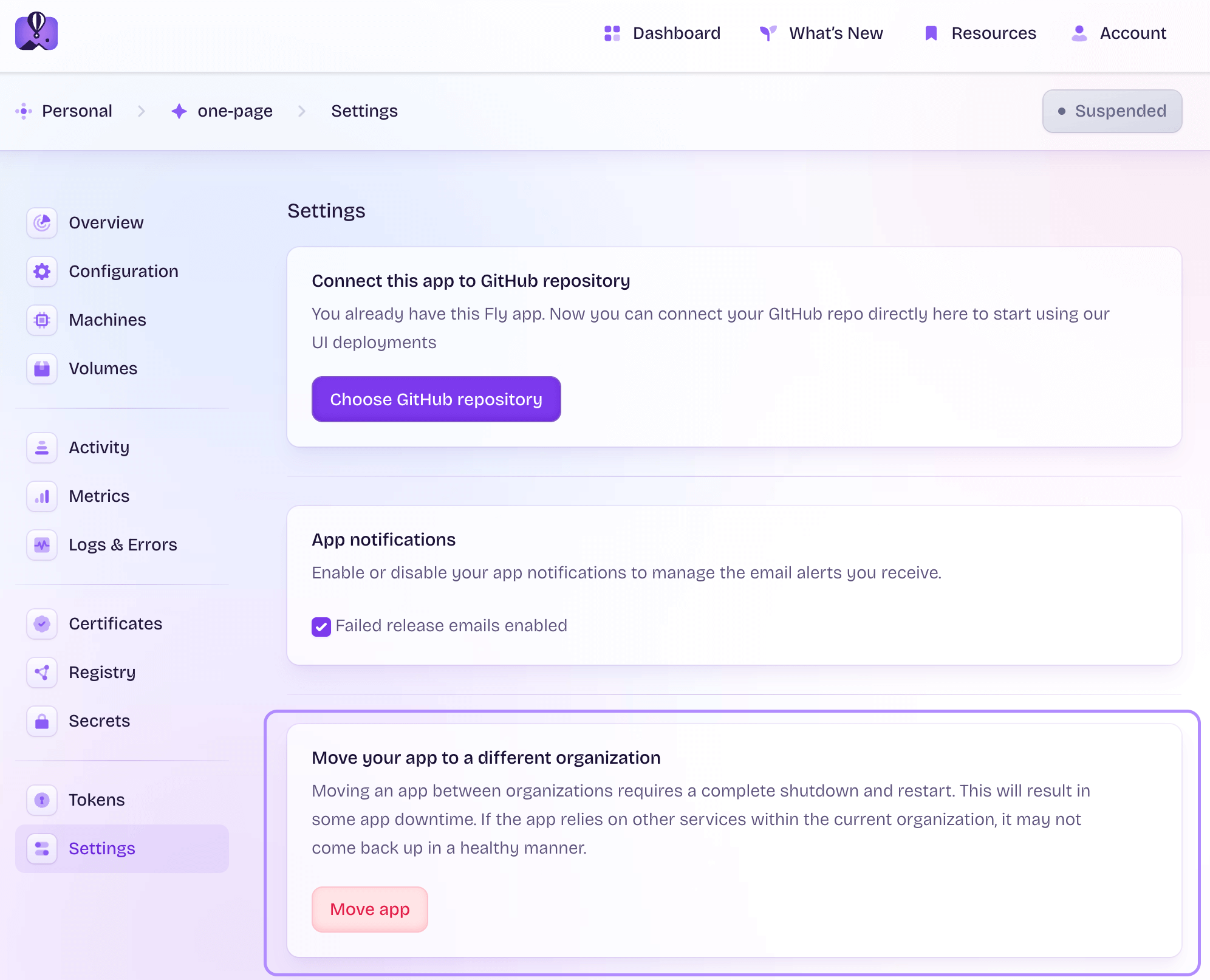
- Be aware: the move causes a couple minutes of downtime. It’s a good idea to schedule this when traffic is low, and inform your users of a maintenance window.
- What moves automatically:
- Machines and volumes (data included)
- Secrets and environment variables
- Certificates and domain names
- LiteFS databases (as long as you’re using
$FLY_APP_NAMEfor the Consul key)
- What doesn’t move automatically:
- Postgres (unmanaged and managed): Moving Postgres databases across orgs is not supported. You’ll need to spin up a new Fly Postgres app in the target org and restore from a volume snapshot. Or you can use
pgloaderto migrate the data. - Upstash Redis: This is tied to an org’s private network. You’ll need to provision a new DB in the new org.
- Tigris buckets: You’ll have to delete the old Tigris bucket, recreate it in the new org, and copy the data over (try
s3sync). Don’t forget to reset your app’s secrets.
- Postgres (unmanaged and managed): Moving Postgres databases across orgs is not supported. You’ll need to spin up a new Fly Postgres app in the target org and restore from a volume snapshot. Or you can use