

Dockerfile Changes
Inertia SSR requires a background Node process that will render requested html pages. You’ll have to update Fly.io’s generatedDockerfile for your Laravel app in order to include support for Node. You can follow any of the below options to include Node:
Option 1: Quick copy of Node to Final Image
The Laravel fly-scanner already generates a Dockerfile that makes use of aNode image, but uses a different final image. The quickest way to include Node into your app’s final image, is to copy over the Node image’s node binaries and generated node_modules to the final fly-laravel image:
Option 2: Install Node in Final Image
Of course, you can also instead opt to fully installNode in your final fly-laravel image. So, revise your Dockerfile to include instructions to install node, and build the necessary assets/node_modules into your final image:
fly-laravel image, we can remove our multi-build setup where we use a separate FROM node image ( to build and copy assets and node_modules ):
Running SSR as A Process
After getting your Dockerfile set up for Inertia SSR to work, you can run the SSR Server as a background process. Here at Fly.io, you can easily run a separate VM for your SSR server instead of a monitoring tool like Supervisor. Update yourfly.toml file to include an ssr process group:
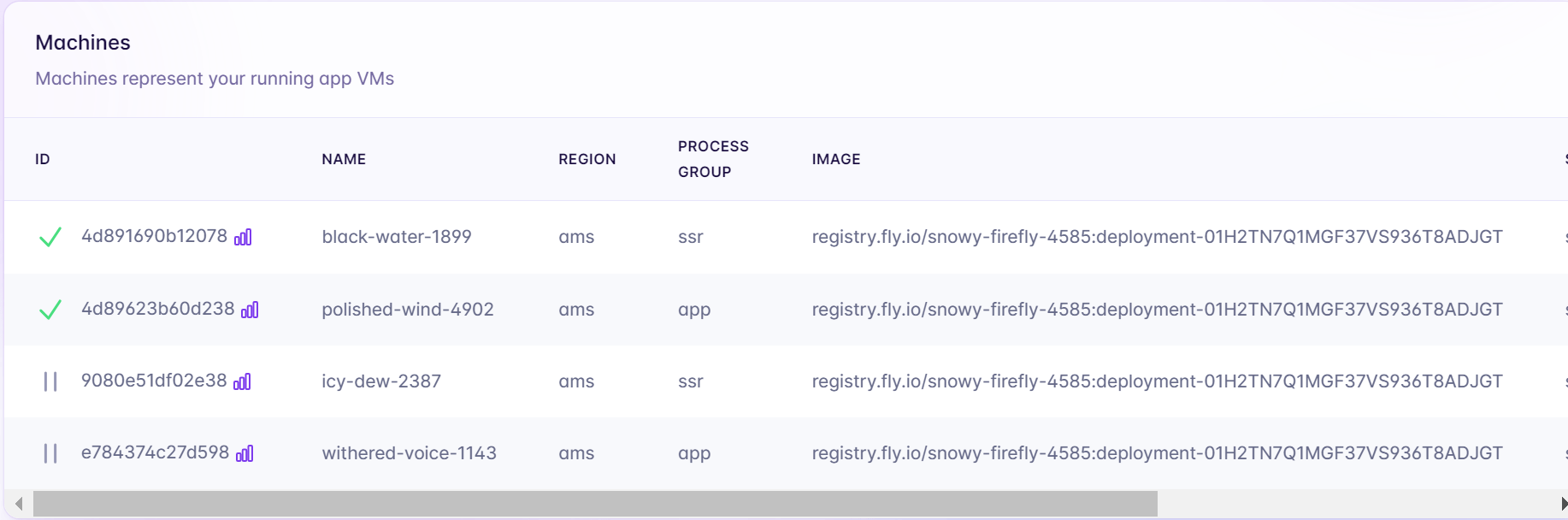
[http_service] is properly mapped to your app process. Update your fly.toml’s http_service section with the app process:
Web and SSR Communication
The SSR server will be created as a separate VM from your web app. You’ll have to configure your Laravel web VM to talk with it. To do so, first revise thefly.toml file to include an SSR_URL that will contain the ssr process’ .internal address routed to SSR’s applicable port ( in the case below, 13714):
SSR_URL env variable:
fly deploy and you’re good to go!