


What’s a maintenance window?
Every Managed Postgres cluster has one maintenance window each week. The window has a day, a start time and a length. Routine maintenance that we schedule for your cluster only starts inside this window. That includes updating Postgres and the software that runs alongside it, and applying configuration changes. Pick a time when a short interruption won’t bother anyone. Some things don’t wait for the window. See What can happen outside the window.The default window
New clusters start with this window:- Day: Sunday
- Start: 1:00 AM
- Length: 3 hours
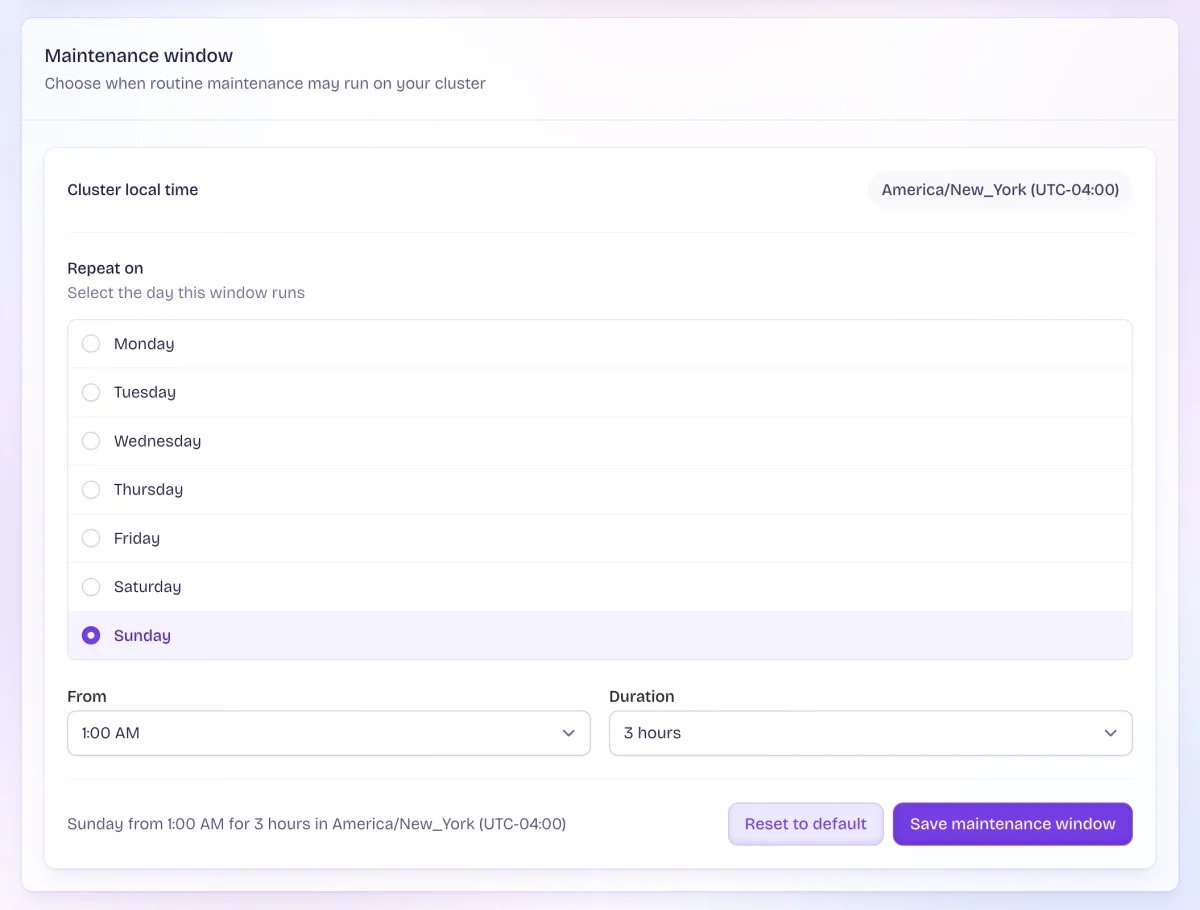
iad uses America/New_York, so its default window is Sunday from 1:00 AM to 4:00 AM Eastern. You can’t choose the time zone. The Cluster local time label on the Maintenance window card shows the time zone and its current UTC offset.
Regions that aren’t listed here use UTC.
The window follows daylight saving time, so it starts at the same local clock time all year. Two edge cases:
- If your start time doesn’t exist on the day the clocks spring forward, the window starts at the first valid time after the jump.
- If your start time happens twice on the day the clocks fall back, the window uses the first one.
Change your maintenance window
- Open your cluster’s Settings tab in the dashboard.
- On the Maintenance window card, choose a day under Repeat on, a start time under From, and a length under Duration.
- Check the summary line. For example: “Sunday from 1:00 AM for 3 hours in America/New_York (UTC-04:00)”.
- Click Save maintenance window.
Note: You can only change the window from the dashboard.
flyctl can’t change it yet, and you can’t set it when you create a cluster. New clusters always start with the default window, and you can change it after the cluster is created.
What happens during maintenance
- When it starts: Maintenance doesn’t always start the moment your window opens. It can start at any point while the window is open. If it can’t start before the window closes, it waits for next week’s window.
- When it ends: If an update has already started, we let it finish, even if it runs past the end of your window. If more updates are queued behind it and the window has closed, they wait for your next window.
- How it runs: We update the machines that need it, one at a time. This usually means the connection poolers first, then the replica. Next, we switch over so the updated replica becomes the primary, and we update the old primary last. Not every maintenance touches every machine.
- Impact on your app: Expect a short interruption. Open connections drop, and writes can fail briefly while the primary changes over or restarts. Apps that retry and reconnect handle this well. For settings that help, see Connect Your Client.
- Emails: We email your organization when maintenance starts, and again when it finishes successfully. These emails go to org members who have alerts turned on. You can turn alerts on or off for each member in the Alerts column of your organization’s Members page. Admins get these emails unless they’ve turned alerts off.
- Dashboard: While maintenance runs, your cluster pages show a Maintenance in progress banner. You can still view everything, but you can’t make changes until it finishes. This covers changes to the plan, users, databases, backups, settings and the maintenance window.
What can happen outside the window
The window only covers routine maintenance that we schedule. These things don’t wait for it:- Changes you make. Plan changes and pool mode changes take effect right away, and they can restart nodes or poolers when you make them. See Cluster configuration options.
- Automatic failover. If your primary fails, your cluster fails over to the replica straight away.
- Fixes you ask for. If you’re working with support on a problem, we can apply a fix right away with your agreement, instead of waiting for your window.
- Urgent fixes. We fix hardware failures, host problems and other urgent platform issues as they happen, not at your scheduled time. These can also drop connections. Platform incidents are posted at status.flyio.net.